Getting started
How to set up your first postcode rules, try them on your own checkout and switch them on for customers.
Install and open the app
- Install UK Postcode Rules from the Shopify App Store.
- In your Shopify admin, click Apps and choose "TillKit UK Postcode Rules".
- The rules page opens inside your admin. There's no account or login of its own to set up.
Set up your delivery rates in Shopify first, as the app uses those rates. Before you add a rule, check that checkout works with a UK delivery address.
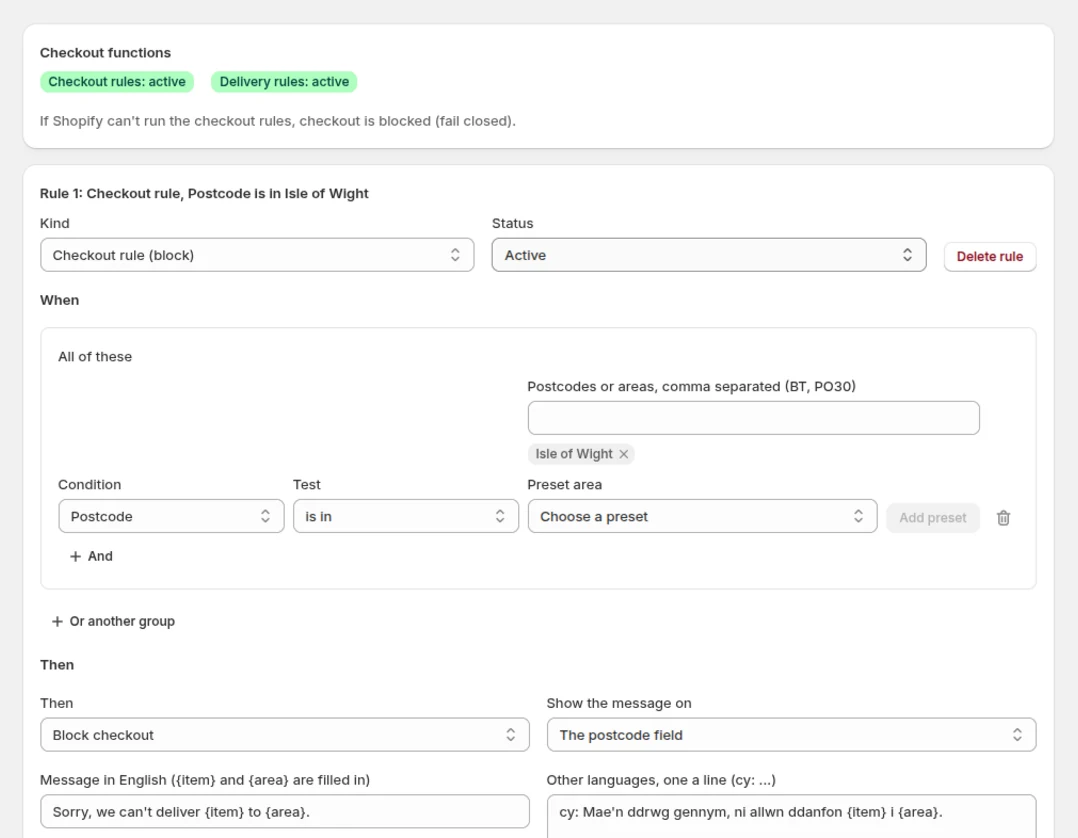
Block products to an area
- Click "Add a checkout rule". The new rule starts with "Postcode" and "is in". Under Then, "Block checkout" is already selected.
- Choose where it applies. Pick a ready-made area under "Preset area" and click "Add preset", or type postcodes in "Postcodes or areas, comma separated (BT, PO30)".
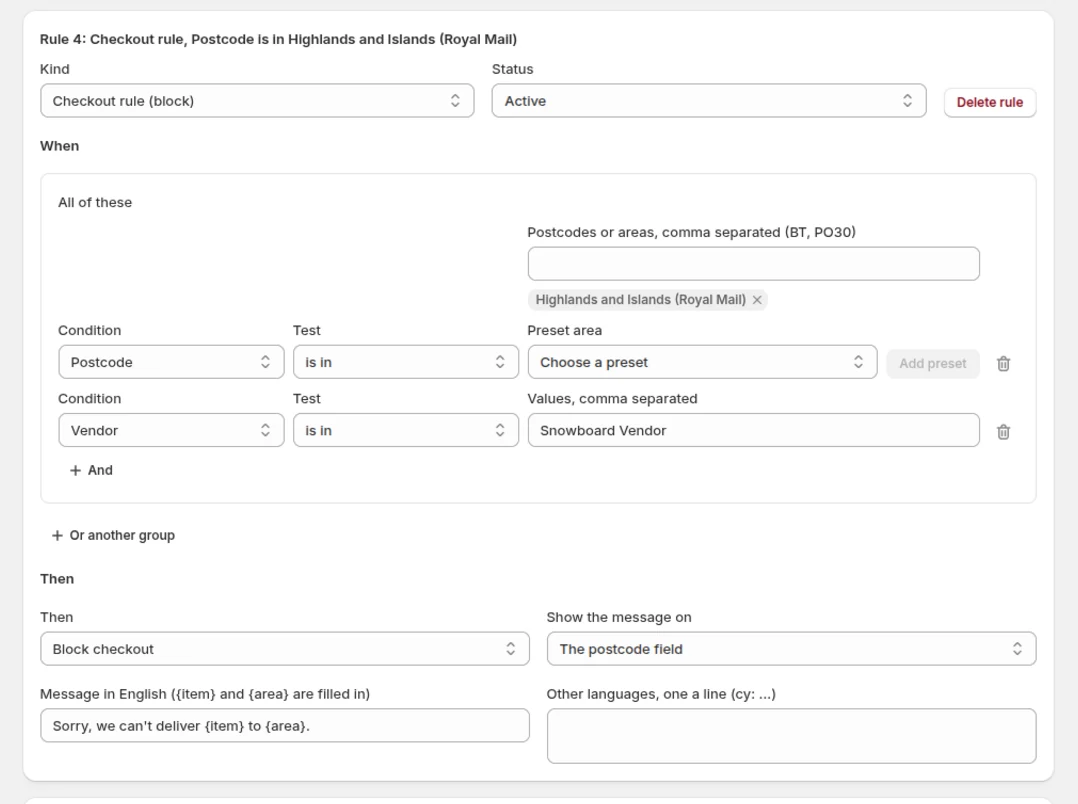
- To block only some products, click "And". The new line shows "Vendor" and "is in". Enter the brand or supplier in "Values, comma separated". To use product tags instead, change "Condition" to "Product tag".
- Check the starting message: "Sorry, we can't deliver {item} to {area}." The app replaces {item} with the item and {area} with the first part of the shopper's postcode, such as PO30. Under "Show the message on", choose "The postcode field" or "The page".
- Set Status to "Active" and click Save. To try it on your own checkout first, see Try a rule first.
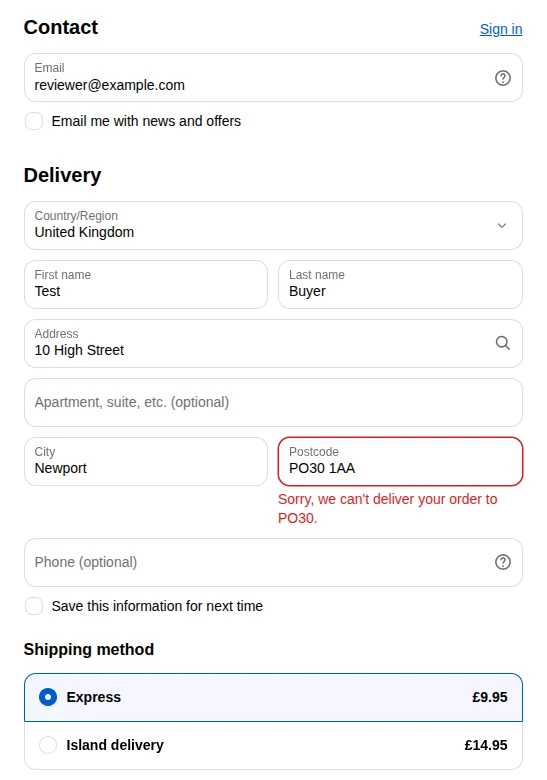
A shopper whose postcode matches the rule sees your message and can't complete checkout. If the rule includes a brand, supplier or product tag, the message names the item. Without one, a shopper in PO30 sees "Sorry, we can't deliver your order to PO30."
A different rate for an area
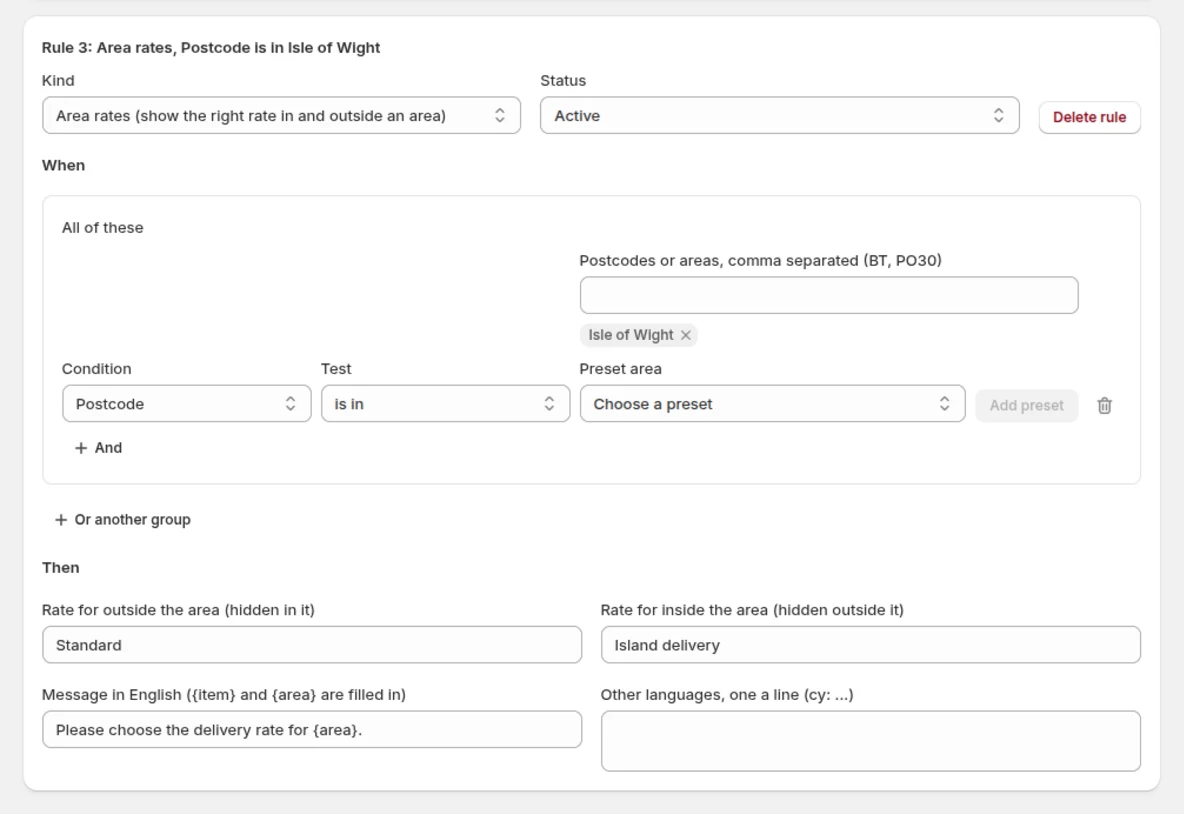
You need two delivery rates already set up in Shopify's shipping settings, for example "Standard" for the mainland and "Island delivery" for the island. The app shows one rate or the other and never sets a price.
- Click "Add an area rate pair".
- Choose a ready-made area under "Preset area" and click "Add preset", or type postcodes in "Postcodes or areas, comma separated (BT, PO30)".
- Enter the mainland rate's name in "Rate for outside the area (hidden in it)". Enter the island rate's name in "Rate for inside the area (hidden outside it)".
- Set Status to "Active" and click Save.
Shoppers in the area see the island rate and everyone else sees the mainland rate. A shopper in the area can't pay while the mainland rate is still selected, and checkout shows them the rule's message.
Hide, rename or reorder rates
- Click "Add a delivery rule" and choose the area.
- Under Then, pick "Hide rates", "Rename rates", "Move rates" or "Show only rates".
- In "Rate names, comma separated" type each rate's name exactly as checkout shows it, such as "Standard".
- To rename a rate, enter its new name in "New name", such as "Standard: 3 to 5 days to the island". To move a rate, set its place in "To position (0 is first)".
- Set Status to "Active" and click Save.
The app ignores any move that would put a dearer rate above the cheapest one.
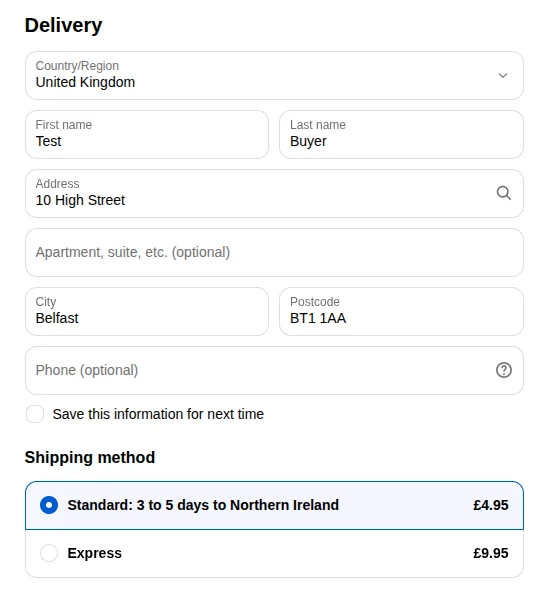
Try a rule first
New rules start in testing. Customers only see a rule after you set Status to "Active".
- Set the rule's Status to "Testing (only with the Testing link)" and click Save.
- A Testing link box appears at the top of the rules page. Click "Copy link" in that box.
- Open the link in your browser, then go to checkout. The rule applies to your cart but not your customers' carts.
- When it works as you want, set Status to "Active" and click Save.
Saving doesn't change the testing link, so you can send it to a colleague to try the rule too. Open the link again whenever you start a new cart. Click "New testing link" to make a new link and stop the old one working for anyone you shared it with.
How to write postcodes
Type the part before the space, such as BT or PO30. You can also enter a range such as PO30-41. Separate entries with commas. The How to write postcodes table on the app page lists all the forms with examples.
The Free plan
- On the Free plan, you can have up to 5 rules in total set to Active or Testing.
- Rules set to Off don't count, so you can keep others ready to use.
- The rules page shows how many rules are Active or Testing. When that total reaches 5, you can't use the Add buttons until you set one of those rules to Off.
Help
- Read the questions on the app page.
- Still stuck? Email hello@tillkit.app with your store's name and the postcode you tried.